Steps to Configure Belkin Wireless N Router
- Connect Belkin Router To Your Computer & Modem
This is the first step in configuring the device on your network. Connect devices as per the order provided below.- LAN Port of Modem is Connected to Internet Port of Belkin Device
- LAN Port of the Router is connected to LAN port of Computer
- Switch On the Router
- Computer is Switched on
- Modem is Switched off
- Access Belkin Router setup Page
To access web based setup page, type 192.168.2.1 on the address bar of the browser. The default Login IP address of Belkin WiFi router is 192.168.2.1
By default there is no password set and you just simply click submit button to log on to setup page.
- Configure Internet On Belkin Router
Click on Connection Type under Internet WAN and select the Internet connection you have from your ISP.
There are mainly four different ways you can configure Internet connection on your Belkin Router. They are:- Dynamic Connection to Configure For Cable Broadband
- Static Connection
- PPPoE Configuration
- PPTP Configuration
1. Setup Belkin Router for Cable Modem
- If you have Cable Internet connection, you should select Dynamic option and click next. In most cases you may need to type the host name provided by Cable Internet Service Provider.

- In addition to this, to work with cable modem, you may need to clone the MAC address of your computer using the link/button Change WAN MAC Address.
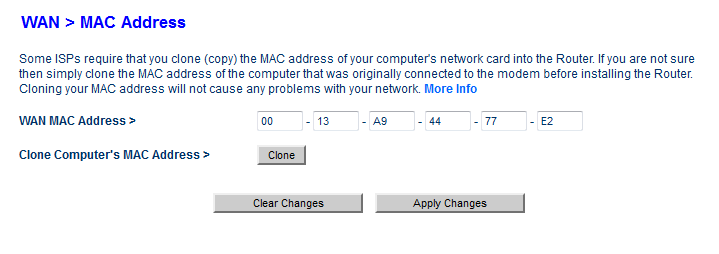
Use the clone button to copy MAC address of your computer. Click Apply Changes after entering the details. After having this step, Belkin will be ready to work with your cable internet connection. This step is important because your Internet Service Provider recognize registered users using the MAC address of the PC used while activating the connection. If you use a different PC, your ISP will not allow it to access Internet because of non registered MAC address. By MAC address cloning feature we can override this restriction.
2. Setup Belkin Router for DSL Modem Using PPPoE
- For most of the DSL Internet connections, you must select PPPoE
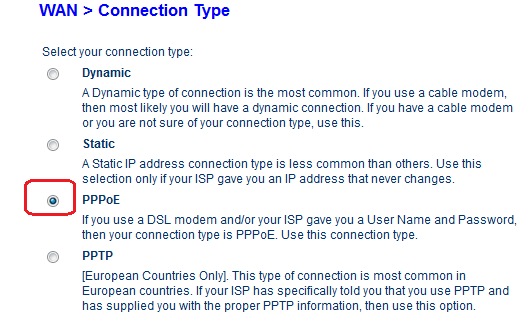
Click Next - Enter the Username and password provided by your DSL Internet Service provider.

Here you should enter the user name and password provided by your Internet Service Provider. After entering the details you should click on save settings. Now your Belkin router is configured in PPPoE for DSL broadband connections. If you do not configure in PPPoE(means in bridge mode), you may need to enter username and password (provided by ISP) on your PC when ever you access Internet. Also you will not be able to share the broadband connection in this bridge mode.
3. Configure Belkin Router With Static IP Address
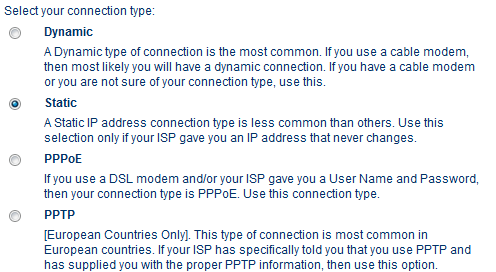
- Select Static and click Next
- Enter the Static IP Address provided by your ISP
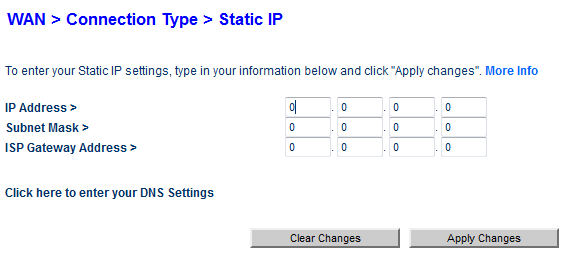
Click Apply Changes
Setup Wireless Feature On Belkin Router
To edit the wireless settings, click on Wireless tab in the setup page. You can edit the Wireless network name and wireless channel here. Here I have customized certain WiFi settings with personalized information.
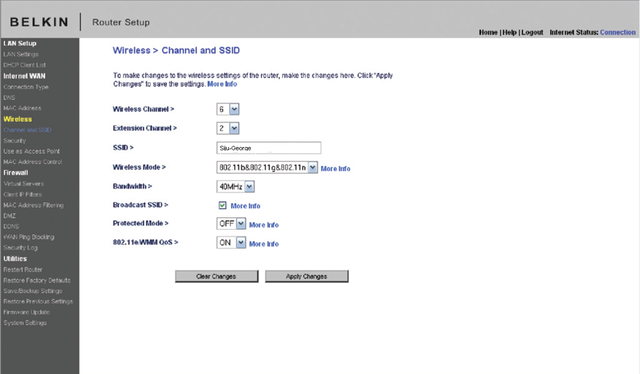
Wireless name (SSID) is the name of your wireless network. The most recommended wireless channel is 6. You can use channel 1 and 11 too. Here I use my name as the SSID by removing the default name. It is important to change the default SSID to easily identify your network.
6. Enable Wireless Security
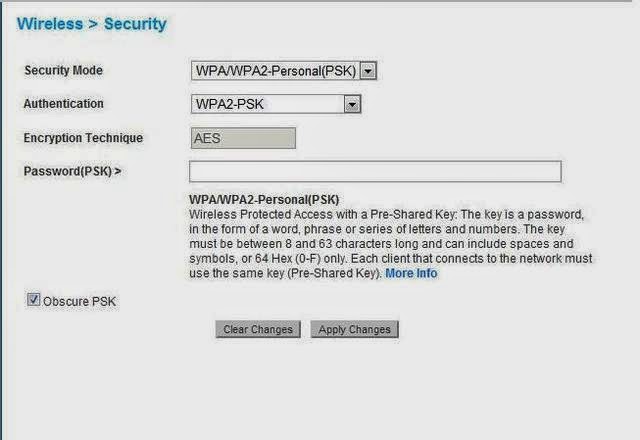
To enable WiFi security, click on security under wireless tab and follow the instructions in the link below.
How to Enable wireless security To Prevent Unauthorized Entry
You should update Firmware
It is very important that you should update firmware after configuring the router. To know how to update the firmware. please contact our technical support team at our toll free number
Aus: 1800 987 893
Change the LAN settings on Belkin Router
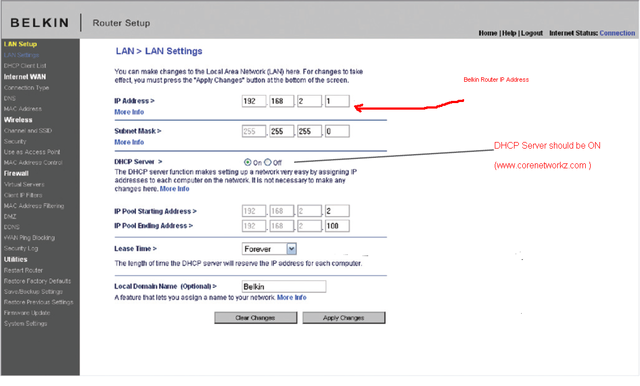
You can change the router IP address and you can enable or disable the DHCP function using this window. By default belkin router IP address is 192.168.2.1 but you can change it to any other valid IP address.
There are some other points you must care after configuring the device. One of them is to ensure the safety of the wireless network. It is a nice practice to enable MAC address filtering to avoid any unauthorized access to your WiFi network. To learn how to enable MAC address filter, follow the link below.
How to enable MAC Address Filter
Cannot Go Online After Installing Belkin Router
Some users says they were able to access Internet before adding Belkin router in their network. After installing the router, they are not able to go online. There are so many reasons for this issue and we have an article about how to deal with such a situation. If you face such an issue on your network, please call our expert technicians for at our toll free numbers, our technicians are professionals and Microsoft certificated. We can fix all issue related to belkin router, get technical assistance today and fix your issues.
our toll free numbers :
Australia: 1800 987 893
USA : 1888 479 2017
Even you can visit our website for more information:


